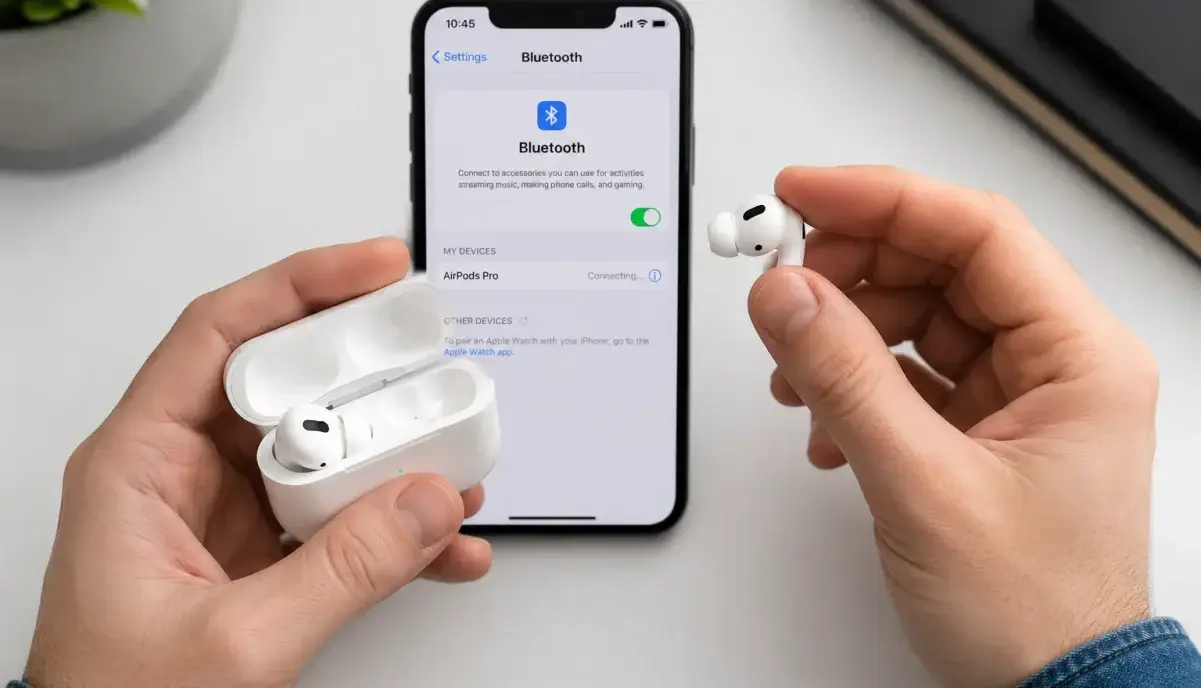
Having trouble connecting your wireless earbuds? You’re not alone—Bluetooth pairing can be tricky. In our Trending Scenes guides, we provide practical tech support. This guide provides step-by-step instructions for connecting wireless earbuds to various devices, plus troubleshooting tips for common issues.
Understanding Bluetooth Connection Basics
Wireless earbuds use Bluetooth technology to connect to devices. Understanding the basics helps troubleshoot issues:
- Bluetooth versions: 5.0+ offers better range, stability, and battery efficiency than older versions
- Pairing mode: Earbuds must be in pairing mode to connect to a new device
- Codec support: AAC (Apple), SBC (universal), LDAC/aptX (high-quality) affect audio quality
- Multipoint connection: Some earbuds can connect to two devices simultaneously
Step-by-Step: Connecting to iPhone/iPad
Step 1: Prepare Your Earbuds
- Ensure earbuds are charged (at least 20%)
- Place earbuds in the charging case
- Open the case lid (some models enter pairing mode automatically)
- If not automatic, press and hold the case button for 3-5 seconds until LED flashes
Step 2: Connect on iPhone/iPad
- Open Settings → Bluetooth
- Ensure Bluetooth is turned on
- Wait for your earbuds to appear in “Other Devices”
- Tap the earbuds name to connect
- Wait for “Connected” status to appear
Step 3: Verify Connection
- Play audio to test the connection
- Check that audio is routing to earbuds (not phone speaker)
- Test microphone by making a test call or using voice assistant
Step-by-Step: Connecting to Android
Step 1: Prepare Your Earbuds
- Same as iPhone: ensure charged, place in case, enter pairing mode
- For Samsung Galaxy Buds: open case near phone for instant pairing
- For other brands: hold case button until LED flashes rapidly
Step 2: Connect on Android
- Open Settings → Connected devices → Bluetooth
- Ensure Bluetooth is on
- Tap “Pair new device” or wait for earbuds to appear
- Tap the earbuds name to connect
- Accept any permission prompts (contacts, call history)
Step 3: Optimize for Android
- Enable “Media audio” and “Call audio” in Bluetooth settings
- For high-quality audio: enable LDAC/aptX in Developer Options (if supported)
- Install manufacturer’s app for firmware updates and customization
Step-by-Step: Connecting to Windows PC
Step 1: Enter Pairing Mode
- Same process: charge earbuds, place in case, activate pairing mode
- Hold case button until LED flashes (usually 3-5 seconds)
Step 2: Connect on Windows
- Click Start → Settings → Devices → Bluetooth & other devices
- Turn on Bluetooth toggle
- Click “Add Bluetooth or other device”
- Select “Bluetooth”
- Choose your earbuds from the list
- Wait for “Connected” status
Step 3: Set as Default Audio Device
- Right-click the speaker icon in taskbar
- Select “Open Sound settings”
- Under “Output,” select your earbuds
- Test audio playback
Step-by-Step: Connecting to Mac
Step 1: Enter Pairing Mode
- Standard process: charge, place in case, activate pairing mode
Step 2: Connect on Mac
- Click Apple menu → System Preferences → Bluetooth
- Ensure Bluetooth is on
- Find your earbuds in the device list
- Click “Connect”
Step 3: Set as Default Output
- Click the volume icon in menu bar while holding Option key
- Select your earbuds as output device
- Or: System Preferences → Sound → Output → select earbuds
Troubleshooting Common Connection Issues
Earbuds Not Appearing in Device List
- Ensure earbuds are in pairing mode (LED should be flashing)
- Move earbuds closer to the device (within 3 feet)
- Restart Bluetooth on your device
- Restart the earbuds (place in case, close lid, wait 10 seconds, reopen)
- Check if earbuds are connected to another device (disconnect first)
Connection Drops Frequently
- Move away from interference sources (microwave, WiFi router, USB 3.0 devices)
- Ensure earbuds and device are within 30 feet (10 meters)
- Update earbuds firmware via manufacturer’s app
- Reset earbuds to factory settings (consult manual)
- Try forgetting the device and re-pairing
Audio Lag or Sync Issues
- Enable “Game Mode” or “Low Latency Mode” if available
- Move closer to the device
- Close other Bluetooth devices nearby
- Update device’s Bluetooth drivers (Windows) or OS (Mac/mobile)
Only One Earbud Working
- Place both earbuds in case, close lid, wait 10 seconds
- Remove and try again
- Check if both earbuds are charged
- Reset earbuds to factory settings
- Contact manufacturer if issue persists (may be hardware defect)
Explore More Categories
Interested in other tech and productivity guides? Check out our content:
Frequently Asked Questions
How do I put my earbuds in pairing mode?
Methods vary by brand: most require holding the case button for 3-5 seconds until LED flashes rapidly. Some models (like AirPods) enter pairing mode automatically when you open the case near a device. Consult your earbuds’ manual for specific instructions.
Can I connect earbuds to multiple devices?
Some earbuds support multipoint connection (connecting to 2 devices simultaneously). Check your earbuds’ specifications. If not supported, you’ll need to disconnect from one device before connecting to another.
Why do my earbuds keep disconnecting?
Common causes: low battery, interference from other devices, outdated firmware, or being out of range. Try: charging earbuds, moving closer to device, updating firmware, and resetting the connection.
How do I reset my wireless earbuds?
Reset methods vary by brand. Common methods: hold case button for 10-15 seconds, or hold both earbud touch controls for 10 seconds. Consult your manual or manufacturer’s website for specific instructions.
Can I use wireless earbuds with a non-Bluetooth device?
Yes, with a Bluetooth transmitter. These devices plug into the audio jack (or USB port) of non-Bluetooth devices (TV, airplane entertainment system, older PC) and transmit Bluetooth signal to your earbuds.
Final Thoughts
Connecting wireless earbuds is usually straightforward, but issues can arise. The key steps are: ensure earbuds are charged, enter pairing mode correctly, and follow device-specific connection steps. Most issues can be resolved by restarting both earbuds and the device, or by resetting the connection.
If you’re still having trouble after trying these steps, consult your earbuds’ manual or contact the manufacturer’s support team.
Want More Tech Guides?
Explore our full Trending Scenes collection for more guides on tech setup and troubleshooting.