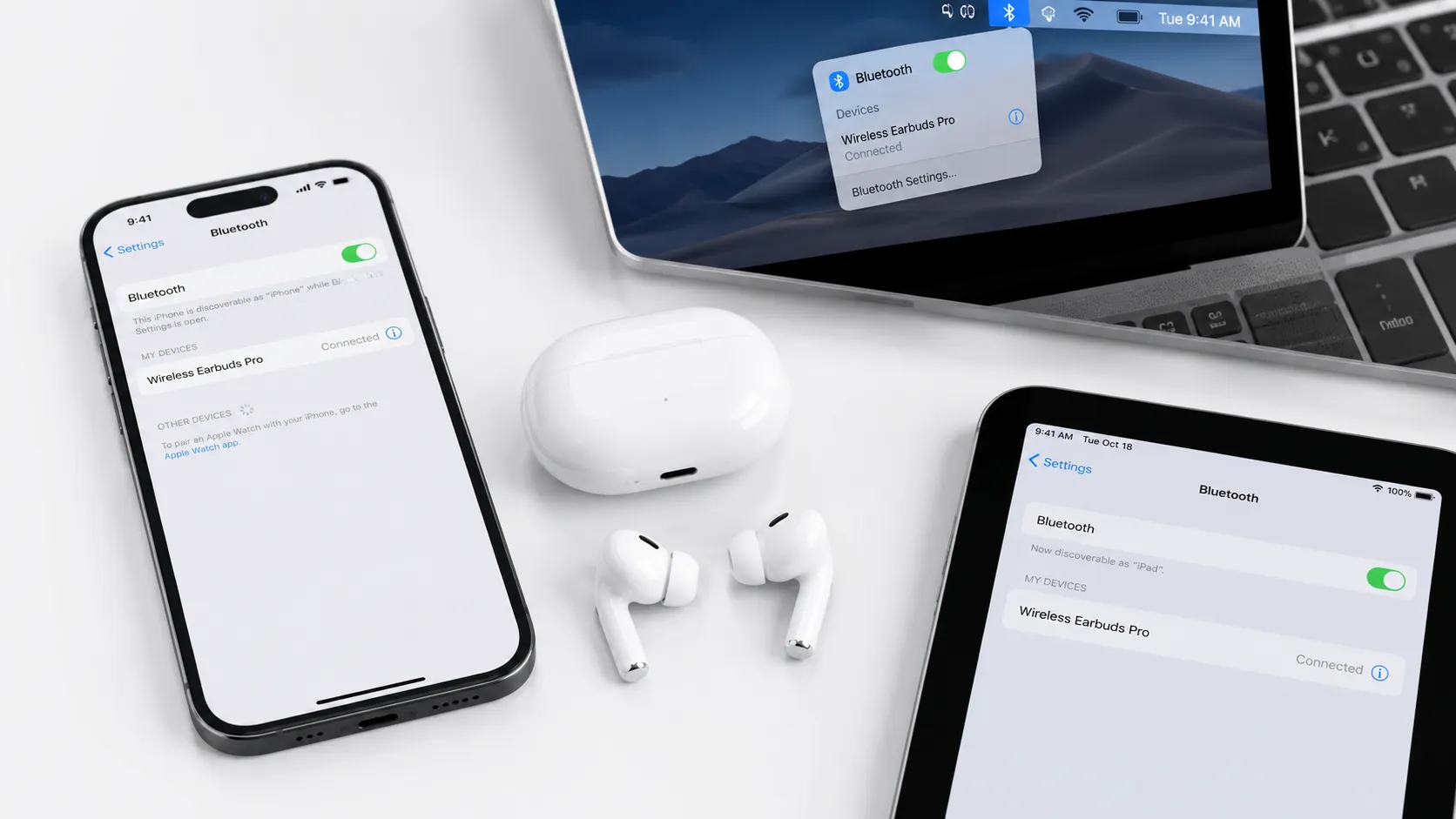
How to connect wireless earbuds to multiple devices is an important topic that many people search for. In this comprehensive guide, we will explore everything you need to know about how to connect wireless earbuds to multiple devices, backed by expert insights and practical strategies.
Understanding Bluetooth Pairing Basics
Bluetooth pairing creates a secure wireless connection between your earbuds and a device. The process involves three stages: discovery (devices find each other), pairing (they exchange security keys), and connection (audio data flows between them).
Bluetooth Versions and Compatibility
- Bluetooth 5.0+ – Offers 4x range, 2x speed, and 8x broadcasting capacity compared to 4.2. Most earbuds released after 2020 use this standard.
- Bluetooth 4.2 – Still common in budget earbuds. Reliable for short-range connections but with limited range.
- Backward compatibility – Newer Bluetooth versions work with older devices, but features may be limited.
Pairing Mode vs. Connected Mode
Your earbuds must be in pairing mode for a new device to discover them. This is different from simply being connected to a previously paired device. Most earbuds enter pairing mode automatically when first removed from the case, or you can trigger it manually by holding the button on the case for 3-5 seconds until the LED flashes white or blue.
How to Pair Wireless Earbuds with iPhone
Apple devices use a streamlined Bluetooth pairing process that works with both AirPods and third-party earbuds.
Step-by-Step Instructions
- Open Settings – Tap the Settings app on your iPhone
- Tap Bluetooth – Navigate to Settings > Bluetooth
- Enable Bluetooth – Toggle the Bluetooth switch to the ON position (green)
- Put earbuds in pairing mode – Open the case lid (for AirPods) or hold the pairing button until the LED flashes
- Wait for discovery – Your earbuds should appear under “Other Devices” within 10-15 seconds
- Tap to connect – Tap the name of your earbuds in the list
- Confirm connection – Wait for the status to change to “Connected”
AirPods-Specific Features
If you are using AirPods, the pairing process is even simpler thanks to Apple’s W1/H1 chip. Simply open the case near your unlocked iPhone, and a setup animation will appear on screen. Tap “Connect” and follow the prompts. For a detailed comparison of current models, see our guide on the best wireless earbuds of 2026.
How to Pair Wireless Earbuds with Android
Android devices offer similar Bluetooth functionality with some manufacturer-specific variations in the settings interface.
Step-by-Step Instructions
- Open Quick Settings – Swipe down twice from the top of your screen
- Long-press Bluetooth – Tap and hold the Bluetooth icon to open full settings
- Enable Bluetooth – Toggle Bluetooth to ON if not already active
- Tap “Pair new device” – This button appears at the bottom of the Bluetooth screen
- Put earbuds in pairing mode – Open the case or hold the pairing button
- Select your earbuds – Tap the device name when it appears in the available devices list
- Accept pairing request – If prompted, tap “Pair” to confirm the connection
Fast Pair (Google Pixel and Supported Devices)
Google’s Fast Pair protocol works similarly to Apple’s AirPods setup. When you open compatible earbuds near your Android phone, a notification automatically appears asking if you want to pair. This feature requires Android 6.0+ and Google Play Services. For tips on connecting earbuds to multiple devices, check our guide on connecting wireless earbuds.
How to Pair with Windows PC and Mac
Desktop and laptop computers also support Bluetooth audio, though the pairing process differs between operating systems.
Windows 10/11
- Open Settings – Click Start > Settings (gear icon)
- Navigate to Bluetooth – Go to Devices > Bluetooth & other devices
- Enable Bluetooth – Toggle Bluetooth to ON
- Click “Add device” – Select “Add Bluetooth or other device”
- Choose Bluetooth – Select “Bluetooth” from the device type options
- Select earbuds – Click on your earbuds when they appear in the list
- Wait for connection – Windows will confirm when the device is connected
macOS
- Open System Settings – Click the Apple menu > System Settings
- Click Bluetooth – Navigate to Bluetooth in the sidebar
- Enable Bluetooth – Toggle Bluetooth to ON
- Put earbuds in pairing mode
- Click “Connect” – When your earbuds appear in the device list, click Connect
Multi-Device Pairing and Switching
Many modern earbuds support multipoint connection, allowing you to connect to two devices simultaneously. This is useful for switching between your phone and laptop without manually reconnecting each time.
How Multipoint Works
- Pair with first device – Complete the normal pairing process with your primary device
- Enter pairing mode again – Put earbuds back in pairing mode without disconnecting from the first device
- Pair with second device – Connect through the second device’s Bluetooth settings
- Automatic switching – The earbuds will switch audio source based on which device is actively playing
Limitations to Know
- Not all earbuds support multipoint – check specifications before purchasing
- Some earbuds limit multipoint to specific device combinations (e.g., phone + PC only)
- Audio quality may be slightly reduced when using multipoint due to bandwidth sharing
- If you need help choosing the right earbuds, see our guide on how to choose wireless earbuds
Common Pairing Problems and Solutions
Even with the correct steps, pairing issues can occur. Here are the most common problems and how to fix them.
Earbuds Not Showing in Device List
- Check pairing mode – Ensure the LED is flashing (not solid). Solid light means connected, not pairing.
- Move closer – Keep earbuds within 3 feet of the device during initial pairing
- Remove old pairings – Delete previous connections from both the earbuds and the device
- Restart Bluetooth – Toggle Bluetooth off and on again on your device
Audio Connects but Sound is Distorted or Choppy
- Reduce interference – Move away from microwaves, WiFi routers, and other Bluetooth devices
- Update firmware – Check the manufacturer’s app for firmware updates
- Check codec compatibility – Ensure both devices support the same audio codec (AAC, aptX, SBC)
- Reset earbuds – Factory reset the earbuds and re-pair from scratch
Only One Earbud is Working
This usually indicates a synchronization issue between the left and right earbuds. Place both earbuds back in the case, wait 10 seconds, then remove them together. If the problem persists, perform a factory reset according to your manufacturer’s instructions. For more troubleshooting tips, see our guide on how noise cancellation works and related audio technology guides.
Frequently Asked Questions
How do I put my wireless earbuds in pairing mode?
Most earbuds enter pairing mode automatically when you open the case lid for the first time or when they are not connected to any device. If they do not enter pairing mode automatically, look for a small button on the case (usually on the back or between the earbuds). Press and hold this button for 3-5 seconds until the LED indicator starts flashing white or blue. Consult your user manual for model-specific instructions.
Can I pair wireless earbuds with multiple devices at once?
Yes, if your earbuds support multipoint Bluetooth connection. This feature allows simultaneous connection to two devices, with automatic switching based on audio activity. Not all earbuds support this feature – it is more common in mid-range and premium models. When multipoint is active, audio from one device will automatically pause when the other device starts playing sound or receives a call.
Why do my earbuds keep disconnecting randomly?
Random disconnections are usually caused by one of three factors: interference from other wireless devices, low battery on the earbuds, or exceeding Bluetooth range (typically 30 feet/10 meters). To resolve this, ensure your earbuds are charged, move closer to your device, and reduce the number of active Bluetooth connections in the area. If the problem persists, resetting the earbuds to factory settings and re-pairing usually resolves the issue.
Final Thoughts
Knowing how to pair wireless earbuds correctly saves time and frustration. The process is consistent across most devices: enable Bluetooth, put your earbuds in pairing mode, select them from the device list, and confirm the connection. When issues arise, the most effective solutions are ensuring proper pairing mode, resetting connections, and minimizing wireless interference. With these steps in your toolkit, you can enjoy seamless audio across all your devices.
Continue exploring practical guides across different life scenarios:
- Work Scenes – Optimize your tech setup for productivity
- Home Scenes – Smart home and organization guides
- Mindset Scenes – Build better daily habits